おともたび User's Manual

Initial Settings

First of all

Otomotabi is a service that can be enjoyed on portable devices such as smartphones and small tablets.
This service cannot be used with devices that do not have GPS functions or in places where Wi-Fi and mobile communication signals are not available.

①Location Information Settings

Otomotabi is a service that allows you to listen to audio linked to your location based on the location information of your smartphone (small tablet).
Please turn on the use of location information.Please review the following instructions for settings.

The location information obtained will not be used for any other service.

  • For iPhone and iPad

    Select "Settings" > "Privacy" and turn "Location Based Services" ON (green). After that, select your browser application (Safari, Google Chrome, Firefox) in the screen and set it to "Allow only while using this App".
    If you set "Accurate Location" on the same screen to ON (green), you can enjoy audio playback at a more accurate location.

  • Android case

    Turn ON (blue) "Settings" > "Location Information". In addition, select your browser application (Safari, Google Chrome, Firefox) and set it to "Allow only when this Appno is in use". In addition, turn ON (blue) the improvement of "Location Accuracy" in the Advanced Settings to enjoy audio playback with more accuracy.

②Audio Settings

Make sure the audio is at the appropriate level.
If you are not using earphones or other devices, turn off the silent mode and confirm that sound is present.

③Use of Browser Apps

For proper and comfortable use of the service,
please use Safari for iPhone and iPad devices,
and Google Chrome or Firefox for Android devices.

※Please be careful not to use the code scanner in the control panel on your iPhone. Once you close the page, you will not be able to open it again.

How to start the service

  1. First, go to an area where the "Otomotabi" service is available.

  2. If you find an Otomotabi QR code in the vicinity of a supported area,
    you can scan it with the camera application to access the service page.

    ※Please be careful not to use the code scanner in the control panel on your iPhone.
    Once you close the page, you will not be able to open it again.
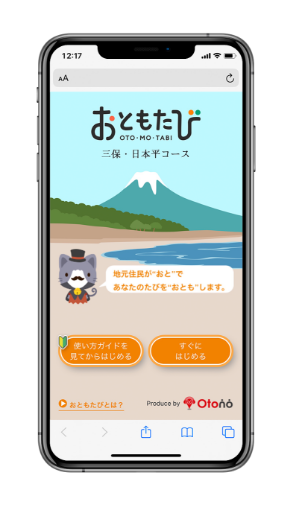
  3. After accessing the top page of the service website,
    click the
    "Start after viewing the usage guide"」button with a tutorial if you are new to the service,
    or click the
    "Start immediately" 」button if you already know how to use the service.

    サービスサイトのトップ画面
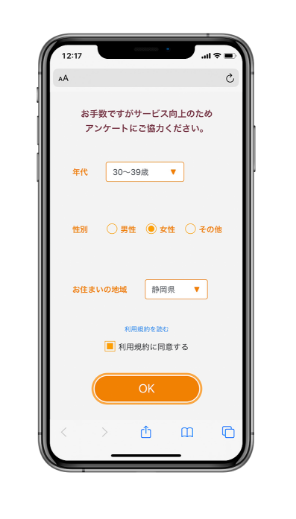
  4. Please choose the three questions
    that apply to you.
    Based on your answers,
    we will use them to help us provide more appropriate services and information.

    3つの問い画面
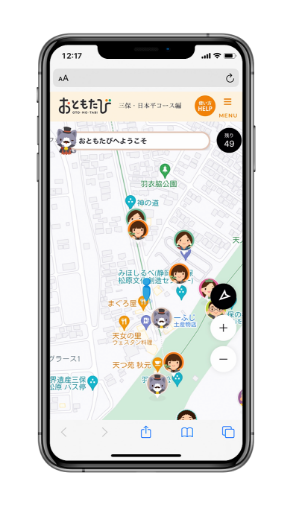
  5. Once the map is open, i
    it's time to begin your journey!

    マップ画面

How to enjoy

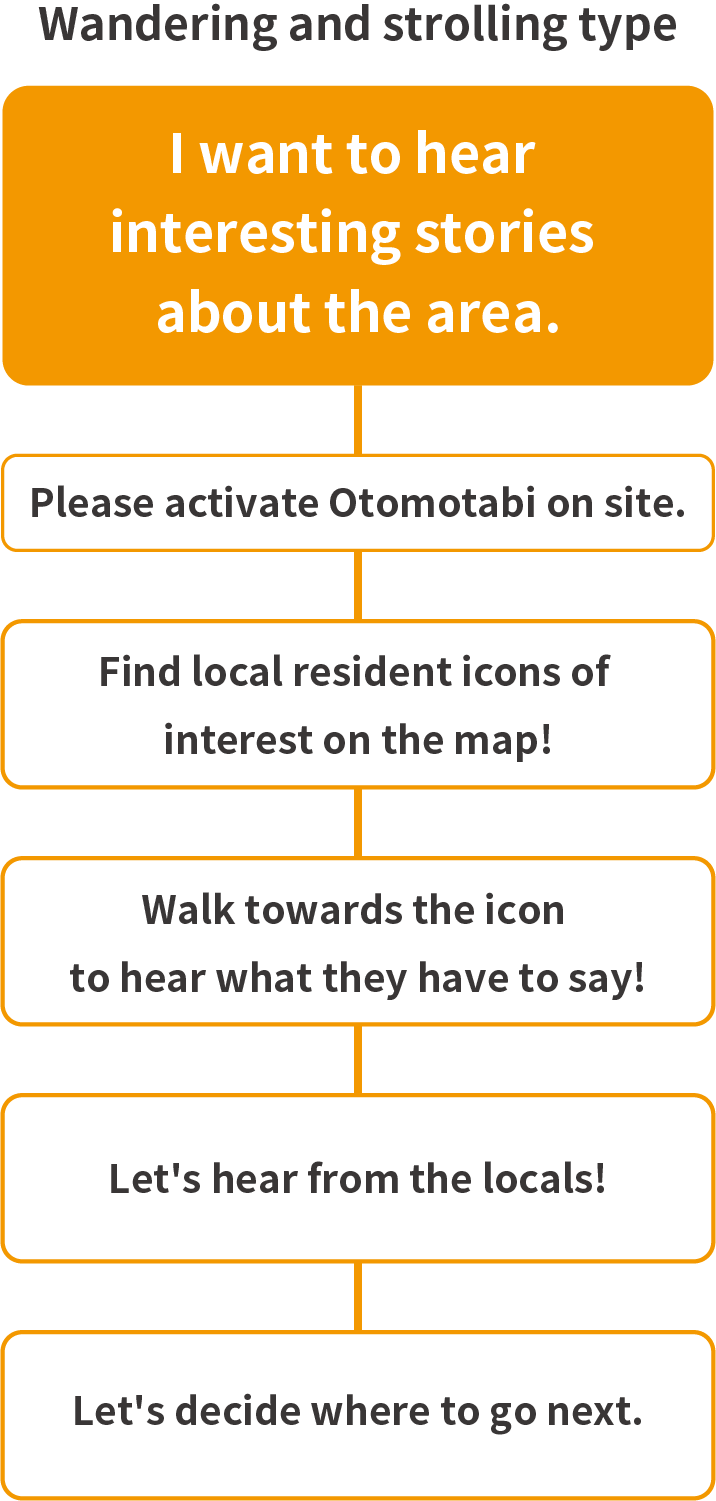
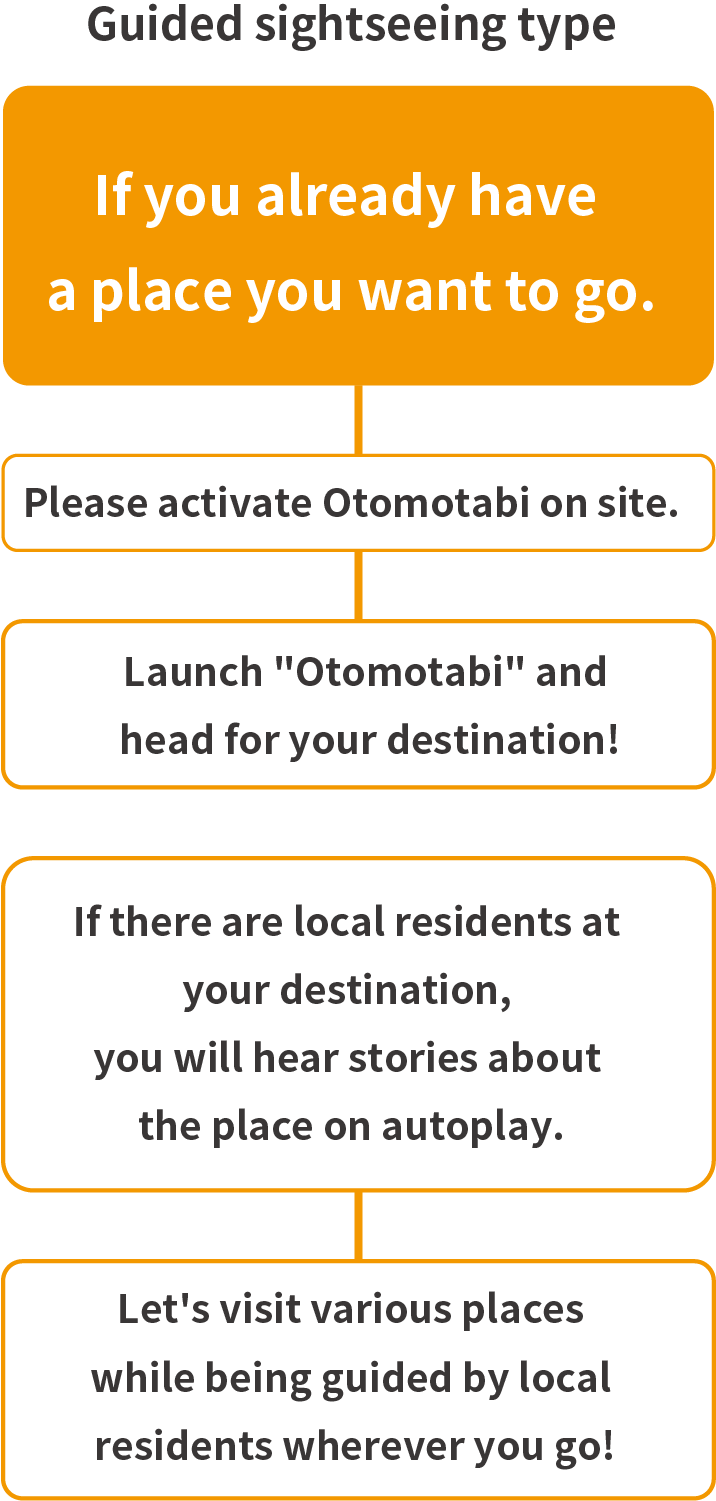
Local residents will accompany you on your journey!

Ask the locals you meet to tell you about special deals while you are out exploring.
Go and meet them to hear their stories. There are many ways to enjoy your trip.
Enhance your trip by asking for the only local information out there!

  • ぶらり散策型
  • ガイド付き観光型

By listening to local residents, you can sometimes receive deals and coupons for related stores and restaurants!

Enjoy an audio guided tour
of the city!

Basic usage

About Icons

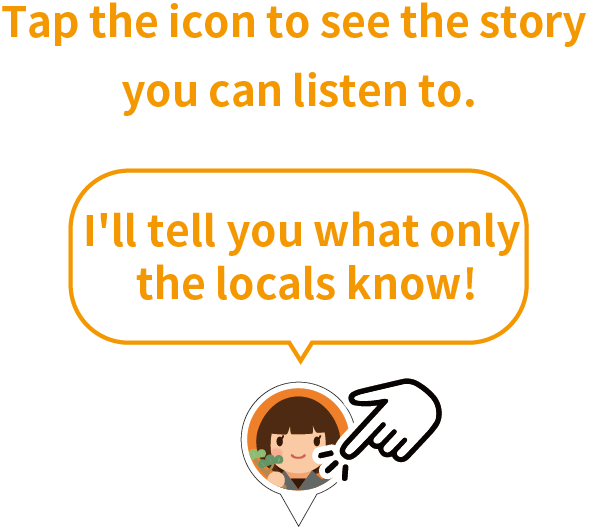
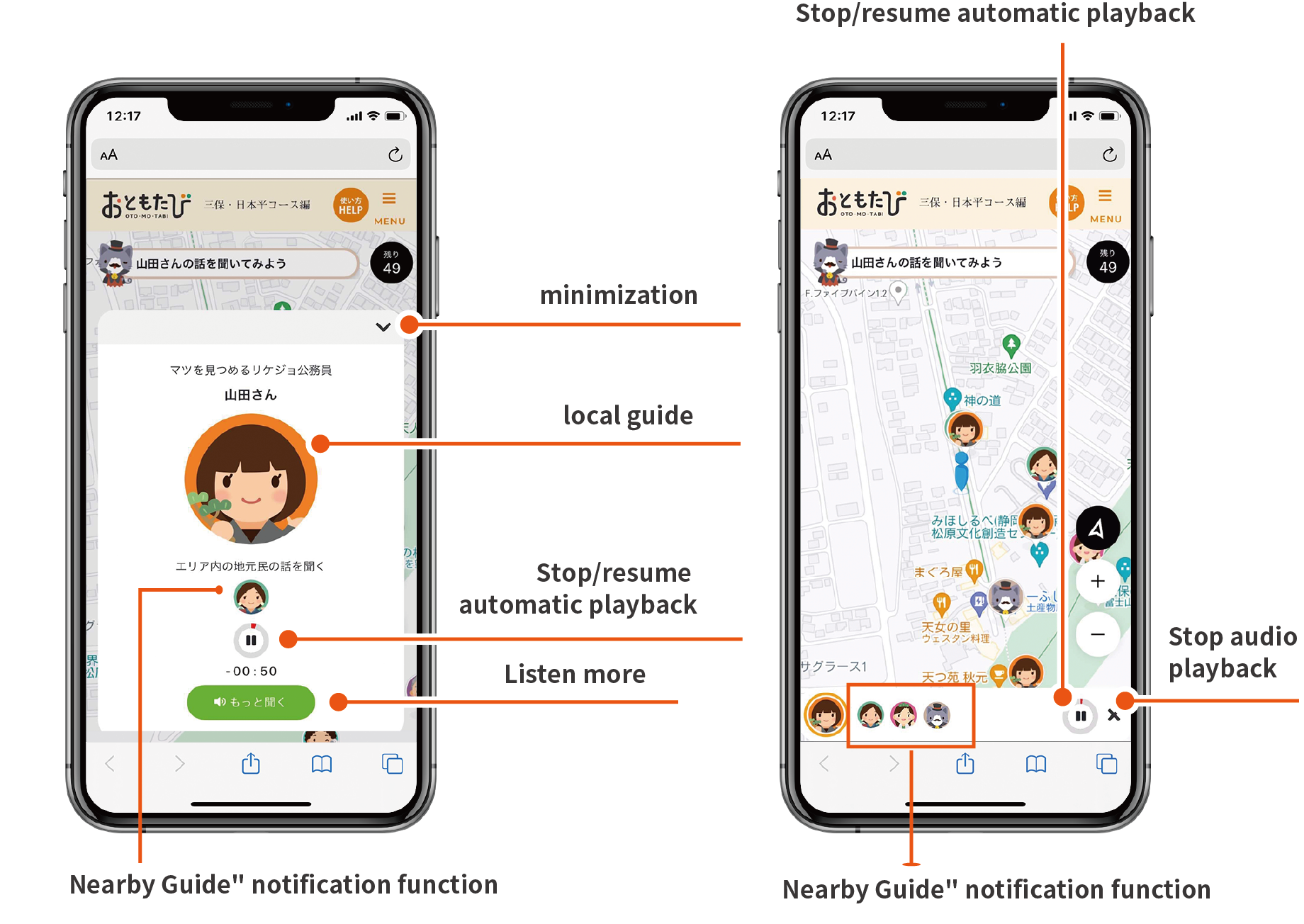
Various icons appear on the map. When you approach an icon with an illustration of a person or a gourmet, "autoplay" starts and you can listen to the guide's story. By tapping the icons, you can get a hint of what kind of stories you can listen to in advance without having to go to the place.

アイコンタップで聞ける話がわかります
  • アイコン

    Local Icon

    Shows your current location.

  • アイコン

    Icon

    There is a guide that tells you local information by automatic playback. The spot is represented by an illustration. There are various guides for the place, such as local residents, experts, local characters, animals, etc.

  • アイコン

    Gourmet Icons

    This is a spot for "audio reviews" that give you local gourmet information. Local residents and actual users will tell you real reviews. It will play when you enter the display area.

  • アイコンタップで聞ける話がわかります

How to use the map

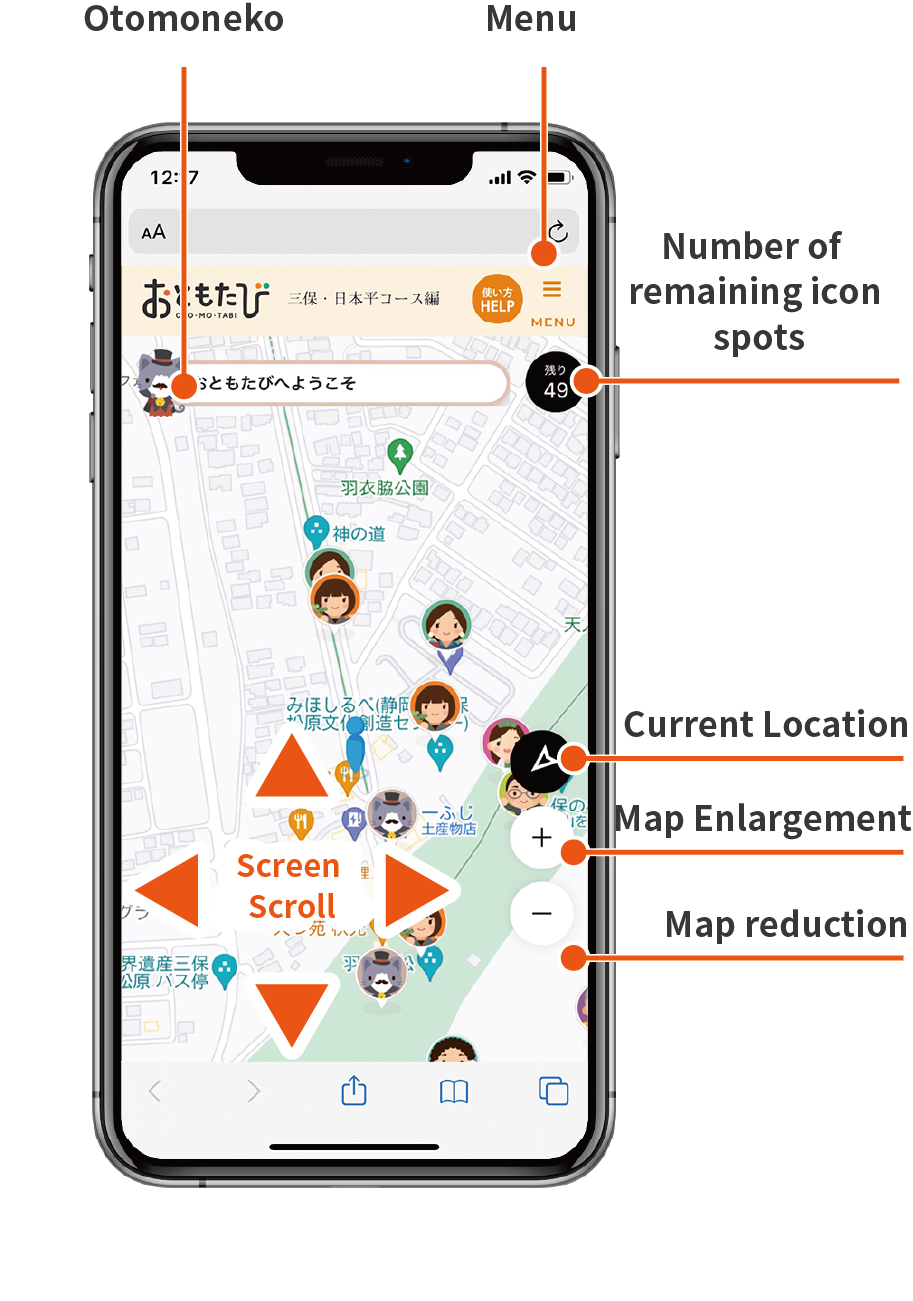
Tap the arrow in the lower right corner of the screen to see your current location,
and tap "+" or "-" to zoom out or zoom in on the map.

iphone地図画面
  • Otomoneko

    Otomotabi Navigator
    We will assist you on your trip by conveying supplementary information
    and tips according to the situation.

    おともねこ
  • menu screen

    Select "Trip history" from the menu bar in the lower right corner to see the icons you have toured. The links will take you to blogs and websites where you can find more detailed information.

iphone地図画面

About Listen More

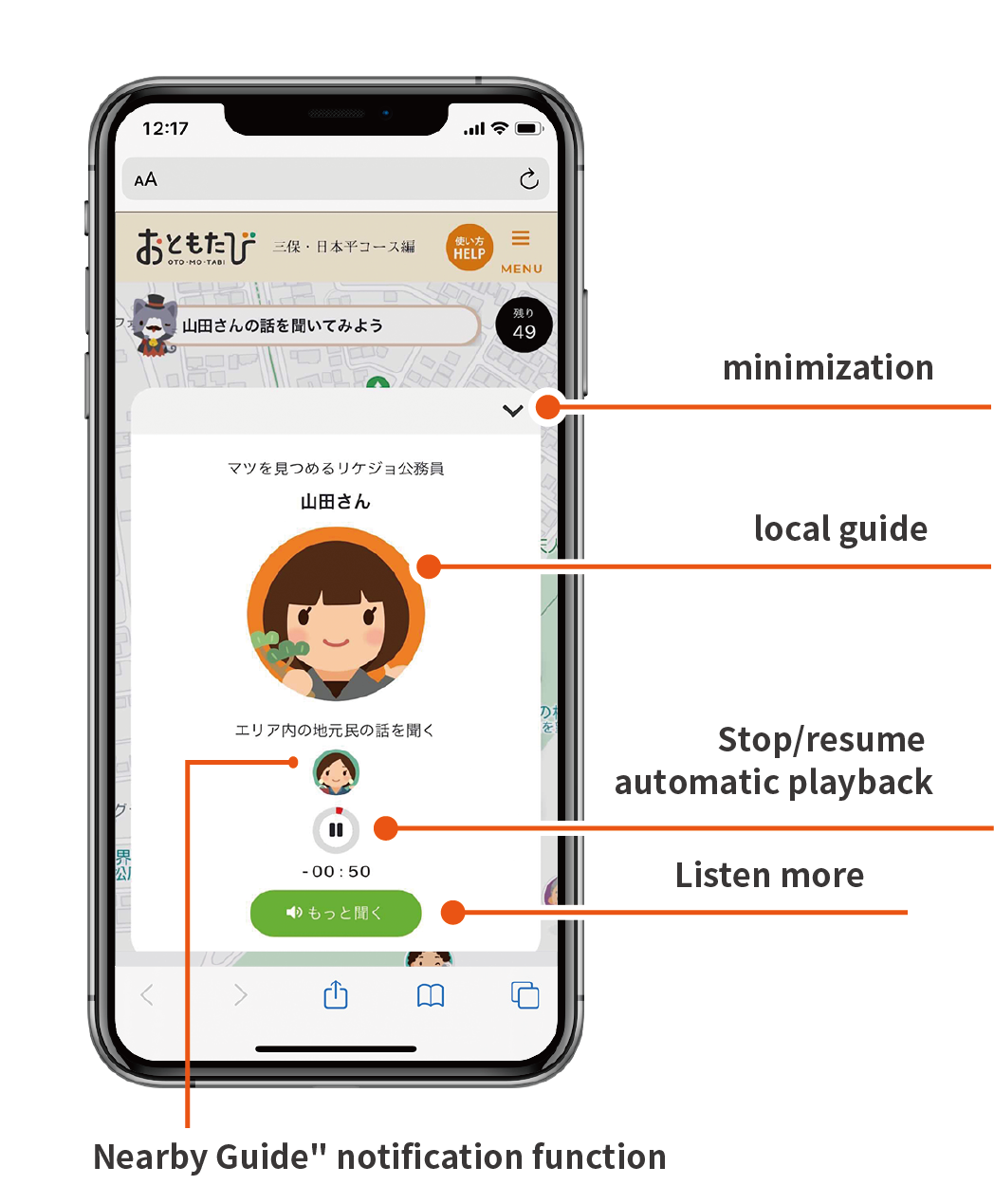
When you approach the icon, an audio will automatically play and start guiding you to the location. Tap "Listen More" to hear more detailed information. You can also zoom out to see the map and walk around while listening.

  • When you finish listening to the audio,
    the icon on the map
    turns sepia.

    聞き込み画面

  • iphone聞き込み画面1
  • iphone聞き込み画面2
  • iphone聞き込み画面
  • When you finish listening to the audio,
    the icon on the map
    turns sepia.

    聞き込み画面
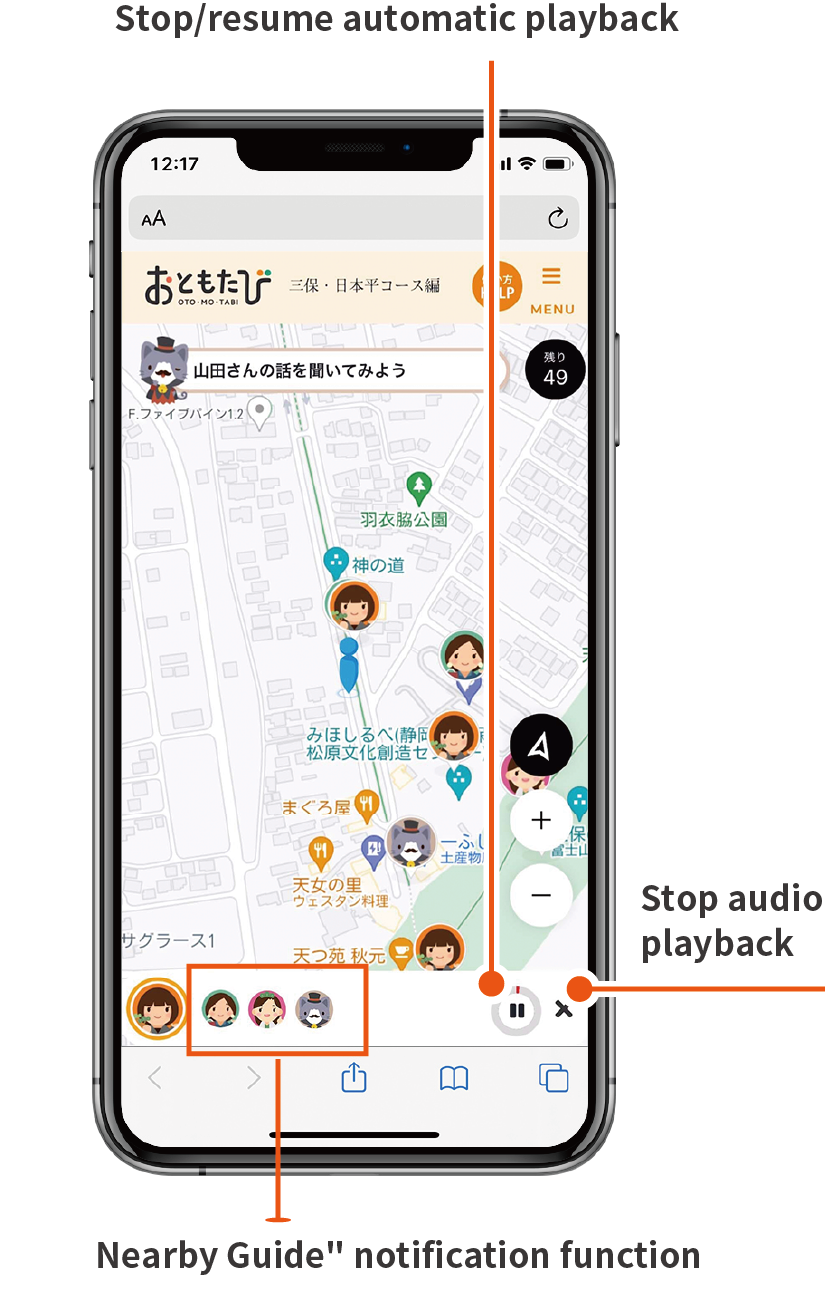
  • Nearby Guide" notification function

    If you approach another icon while one voice is playing, a "ping-pong" sound will be heard and the icon will be lined up on the screen as the next voice to be played. When the currently playing voice finishes, the voice in the lineup will automatically begin. If you want to listen to the voice of another icon in the line even during the voice guide, tap the icon and the next voice will start. However, if you move away from the icon for a certain period of time, the icon will automatically disappear.

Troubleshooting

Map does not move or current location is not displayed

Please check your default settings. Please make sure that you have turned on the Get Current Location in your browser application before using this service.

Location information is inaccurate

  • The accuracy of location information may deteriorate in some areas, such as mountainous areas and along the coast. If the correction does not occur, reloading the page may improve the situation.
  • Please make sure you are using the latest version of iOS or Android. The accuracy of location information varies greatly depending on the device used.
  • Turning on Wi-Fi and Bluetooth improves the accuracy of location information.
  • Ensure that you have an adequate network environment. Make sure you have an adequate Internet connection, either via cell phone or Wi-Fi.
  • For Android devices Go to "Settings" > "Location" and tap "Google Location Accuracy" and turn on "Improve Location Accuracy".

My log of where I went today is gone.

  • If you open this service in the Control Center (for iPhone) or Quick Settings (for Android) in a code castner or chat application, the log may be lost once you close the page.
    Please use this service with Safari on iPhone and iPad devices or Google Chrome/Firefox on Android devices.
  • If you are browsing in Private Browsing mode, no history will be kept. Please deactivate this setting.

Return to TOP page